Module Action Menu
The Module Action Menu is found by clicking on a module in a patch and then clicking on the Tool icon at the top.
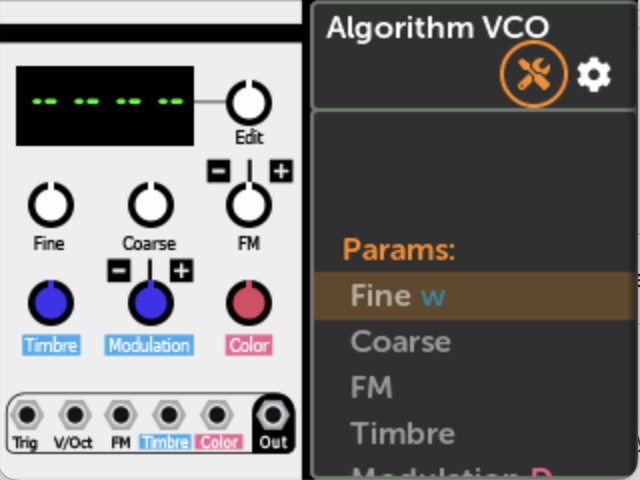
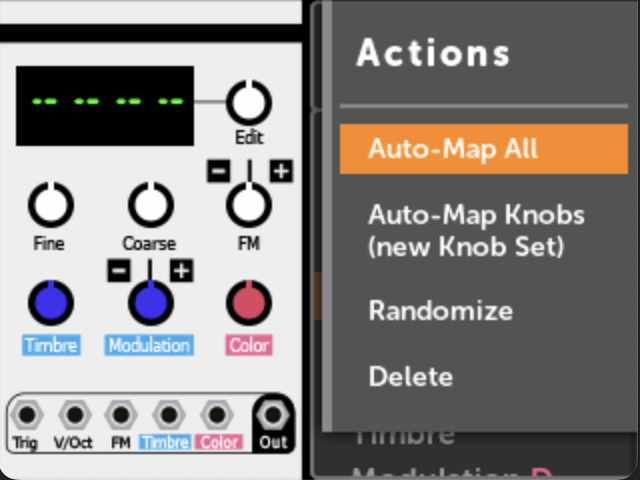
The menu is longer than the screen. Keep turning the encoder to reach the actions at the bottom of the list.
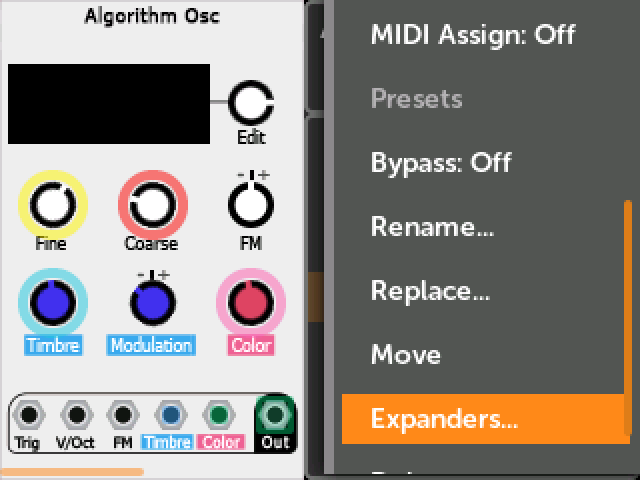
Actions
Auto-Map All
This action attempts to map all knobs and jacks in the order that they appear in the module. Existing maps will be preserved, and new Knob Sets will be created if needed.
Jacks will be mapped to In 1-6 and Out 1-8, skipping any jacks that are already mapped.
Auto-Map All is a great way to try out a module or quickly create a single-module patch.
Since this action will often fill all your jack mappings, it's recommended to
use Auto-Map Knobs (new Knob Set) for multi-module patches.
Auto-Map Knobs (new Knob Set)
Similar to Auto-Map All, but this will create a new Knob Set and only map the
knobs (not jacks). The new Knob Set will be given the name of the module (e.g.
"EnOsc" or "Plateau").
If there are more than 12 controls, then only the first 12 will be mapped.
Randomize
This randomizes the value of all parameters. Note that in VCV Rack, modules can exclude particular parameters from being randomized. This is not present in MetaModule, but will be added in a future update.
Initialize
This initializes or resets the module. Different modules may interpret this differently, but typically this sets all knobs, switches, etc to their basic states.
This action does not remove any mappings or cables, but otherwise resets the module to the same state it was in when you first added it to the patch.
Presets
Clicking this will let you browse all factory presets for the module. If no presets are found, then this option will be disabled.
Note that in the current MetaModule firmware, loading user-created presets is not supported. Users who are familiar with the command line could add a preset to a plugin file like this:
tar -xf PluginName.mmplugin
cp 01_my_preset.vcvm PluginName/presets/ModuleName/
tar -cf PluginName.mmplugin PluginName/
MIDI Assign
This enables MIDI Assign mode, which allows you to quickly map parameters to MIDI CC or MIDI Note gate on/off events. See Quick Assign Jacks
Bypass
Bypass toggles a module on or off without removing it from the patch. When bypassed,
the module stops processing audio and CV, but all settings, mappings, and cables are
preserved. Bypassed modules appear dimmed. The bypass state is saved with the patch
and restored on load.
Use Bypass to temporarily disable a module while experimenting, or to compare your patch
with and without a particular effect.
Rename…
Assign a custom alias to a module. Tapping Rename... opens a keyboard where you can
type a new name. Click the check mark to save your changes, or press the Back button to cancel. The alias appears wherever the module's name would be displayed. The alias is saved with the patch.
Reset name
Clear an alias and reset the module to its default name. (Only appears when a custom name is set for the selected module.)
Replace…
Replace… swaps the selected module for a different one, without having to delete it and add
a new module by hand. This works while the patch is playing.
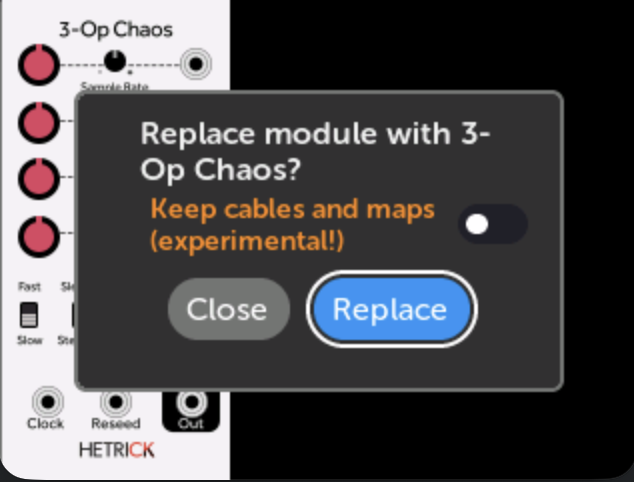
Clicking Replace… opens the module browser. Choose the module you want to swap in, and a
confirmation window appears:
-
Replace module with [name]? — Tap
Replaceto confirm, or the Back button to cancel. -
Keep cables and maps (experimental!) — A toggle in the confirmation window that determines what happens to the old module's connections:
-
Off (default): All cables, knob mappings, MIDI mappings and expanders that were connected to the old module are removed. The new module is added fresh, with no connections.
-
On: Cables, knob mappings, and MIDI mappings stay attached to the same control and jack indexes on the new module. Expanders are disconnected. This is only useful when the replacement module has a similar order for the jacks and controls. For example, swapping one filter of the same brand for another, where both modules have the first output jack as the Audio Out, the first input jack as the Audio In, and the Frequency and Resonance knobs and CV jacks in the same order. If the new module has a different layout, maps and cables will end up connected to the wrong controls, so this option is marked experimental.
-
Move
Move picks the module up so you can put it somewhere else in the patch. You are
taken to the Patch View in re-arrange mode, with this module already picked up:
- Turn the encoder to move the module left or right along its row.
- Push and turn the encoder to move it up or down a row.
- Click to put the module down, then press the Back button when you're done.
Modules can only be moved when the Compact Layout display setting is off. If it's on, you'll be asked whether to turn it off.
See Re-arranging modules for the details.
Expanders…
Expanders... opens a window that shows which modules are attached to the left
and right sides of this module as VCV expander modules. From this window you can
attach a module as an expander, jump to an attached module, or detach it.
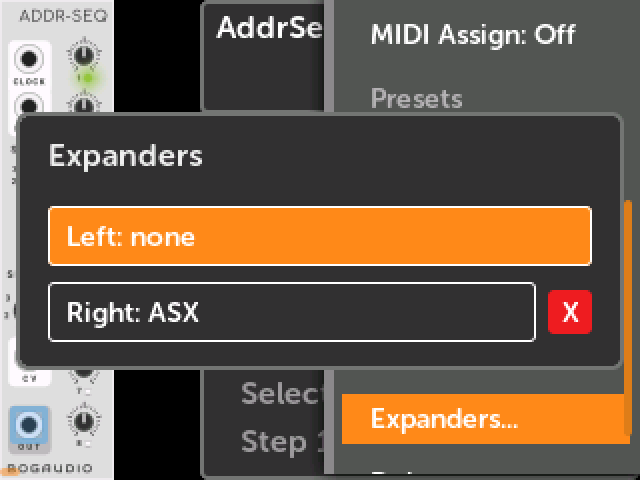
See VCV Expander Modules for how to use it.
Delete
Delete the module from the patch, removing all cables, mappings, and expander connections. This cannot be undone. (However, you can Revert the patch file to restore the module.)
Module Options menu
Separate from the Action Menu, many modules have their own menu of module-specific settings. This is the same menu you get by right-clicking the module in VCV Rack.
To find it, click a module to open Module View, then scroll to the bottom of the list of knobs and jacks and click Options:.
What's in this menu depends entirely on the module. Typical entries are on/off options, lists of modes to choose from, and sliders for advanced parameters.
Starting in firmware v2.3.0, sliders in the options menu can be adjusted. Clicking on a slider item will pop-up an adjustment dialog box:
- Turn the encoder to change the value. The value display updates as you turn.
- Click the encoder or press the Back button to close the pop-up.